Is your Shark Ion Rv700 ignoring its cleaning schedule? This is a common but usually fixable issue. The primary culprits are often Wi-Fi connectivity problems, a weak or failing battery, app glitches, or simple scheduling misconfigurations. Start by power cycling both the robot and your router, then check the SharkClean app for active schedules and firmware updates. Ensuring a stable 2.4GHz network connection and verifying the robot’s battery health are critical steps. Most scheduling failures can be resolved at home without a service call by methodically working through these checks.
You set it and you forget it. That’s the beautiful promise of a robot vacuum like the Shark Ion Rv700. You meticulously program a schedule—maybe Monday, Wednesday, Friday at 10 AM—and trust it to handle the mundane while you’re out living your life. But then you come home to a dusty floor, or you get a notification that your cleaning was missed. That sinking feeling is all too familiar. Your Shark Ion Rv700 not starting on the schedule time isn’t just an inconvenience; it breaks the spell of automation and forces you back into the chore loop. The good news? This is one of the most common issues with connected robot vacuums, and it’s almost always something you can diagnose and fix yourself. We’re going to walk through every possible reason, from the simple to the complex, so you can get your automated cleaning back on track.
First, take a breath. Don’t assume the worst. The problem is rarely a fatal mechanical failure. It’s almost always a communication breakdown between your phone, the Shark servers, and your little robotic helper. Think of it like a very literal game of telephone. The schedule command starts in the cloud (or your app), travels over your Wi-Fi to the robot’s base, and then the robot needs to be ready, willing, and able to execute it. If any single link in that chain is weak, the message doesn’t get through, and your floor stays dirty. Let’s break down that chain and find the weak link.
Key Takeaways
- Connectivity is King: The most frequent cause of a Shark Ion Rv700 not starting on schedule is a lost or unstable Wi-Fi connection. The robot must be online to receive schedule commands from the cloud.
- Battery Health is Crucial: A degraded battery may not hold enough charge to complete a scheduled cycle, causing the robot to abort or simply not start. Check its runtime against the original specs.
- App & Software are the Brain: An outdated SharkClean app, corrupted schedule data, or old robot firmware can create communication breakdowns. Regular updates prevent many glitches.
- Power Cycle First: Before any deep troubleshooting, always perform a full power cycle: turn off the robot, unplug the charging base, and reboot your router. This resolves transient network and software hiccups.
- Check the Basics: Verify the robot is on its charging base with a solid connection (lights), the schedule is enabled in the app, and you haven’t accidentally set it for “Do Not Disturb” mode or a different time zone.
📑 Table of Contents
- Understanding the Shark Ion Rv700’s Scheduling System
- Common Causes: Why Your Schedule is Being Ignored
- A Systematic Troubleshooting Guide: The “Power Cycle and Check” Method
- The Battery: The Silent Schedule Killer
- Software Glitches and Firmware: The Digital gremlins
- Preventive Maintenance for Reliable Scheduling
- Conclusion: Getting Back to “Set and Forget”
Understanding the Shark Ion Rv700’s Scheduling System
To troubleshoot effectively, you need to understand how the schedule actually works. It’s not just a simple timer inside the robot. The Shark Ion Rv700 is a “connected” robot, meaning its smarts live primarily in the cloud and your smartphone app.
The Role of the SharkClean App
When you create a schedule in the SharkClean app, you’re not programming the robot directly. You’re sending a command to Shark’s servers, which then store that schedule. At the appointed time, Shark’s servers send a push notification-style command over the internet to your robot, but only if your robot is online and connected to your home Wi-Fi network. The robot’s charging base acts as the Wi-Fi bridge. If the robot is not connected to the base, or the base isn’t connected to your router, that command never arrives. This is why Wi-Fi stability is the #1 suspect when a Shark Ion Rv700 is not starting on schedule.
The Robot’s Internal Clock and State
The robot itself has a basic internal clock and memory. Once it receives the command from the cloud, it checks its own state. Is it on the charging base? Is the battery charged above a certain threshold (usually around 20-30%)? Is it currently cleaning or in an error state? Is “Do Not Disturb” mode active, which would silence all scheduled starts? If any of these conditions aren’t met, the robot will ignore the start command. So, the schedule isn’t just a time; it’s a set of conditions that must all be true simultaneously.
Common Causes: Why Your Schedule is Being Ignored
Now let’s identify the usual suspects. We’ll start with the most probable and move to the less common.
Visual guide about Shark Ion Rv700 Not Starting on the Schedule Time
Image source: sharkvacuum.blog
1. Wi-Fi and Network Connectivity Issues
This is the heavyweight champion of scheduling failures. The Rv700, like many older connected devices, only connects to 2.4GHz Wi-Fi networks. It will not work on a 5GHz network. Furthermore, it can be finicky about network name (SSID) settings, security types (WPA2-Personal is best), and signal strength.
- Signal Strength: Is the charging base placed in a basement or far from your router? Even if your phone shows bars, the robot’s antenna might be weaker. Try moving the base closer to the router temporarily to test.
- Band Steering: Many modern routers have “band steering” that automatically tries to move devices between 2.4GHz and 5GHz. This can confuse the robot. Log into your router settings and disable band steering, or create a dedicated 2.4GHz network (e.g., “MyWiFi-2.4”) just for smart home devices.
- Network Congestion: If your neighborhood is dense with Wi-Fi networks, channel interference can cause dropped packets. Use a Wi-Fi analyzer app to see if your router’s channel is crowded and switch to a less busy one (channels 1, 6, or 11 are standard for 2.4GHz).
- Router Firewall/MAC Filtering: Advanced security settings on your router might be blocking the robot. Ensure MAC filtering is off or that the robot’s MAC address (found in the app under robot settings) is allowed.
2. Battery Degradation and Charging Problems
A Shark Ion Rv700 battery typically lasts 1-2 years with regular use. As it ages, its capacity drops. A schedule might be set for a 90-minute clean, but a degraded battery might only have enough charge for 60 minutes. The robot will start, realize it can’t complete the mission, and return to base—or it might not start at all if the battery is critically low.
- Check Actual Runtime: Run a manual “Clean All” cycle and time how long it actually works before returning to charge. Compare this to the original ~60-90 minute spec. If it’s significantly less, the battery is the likely culprit.
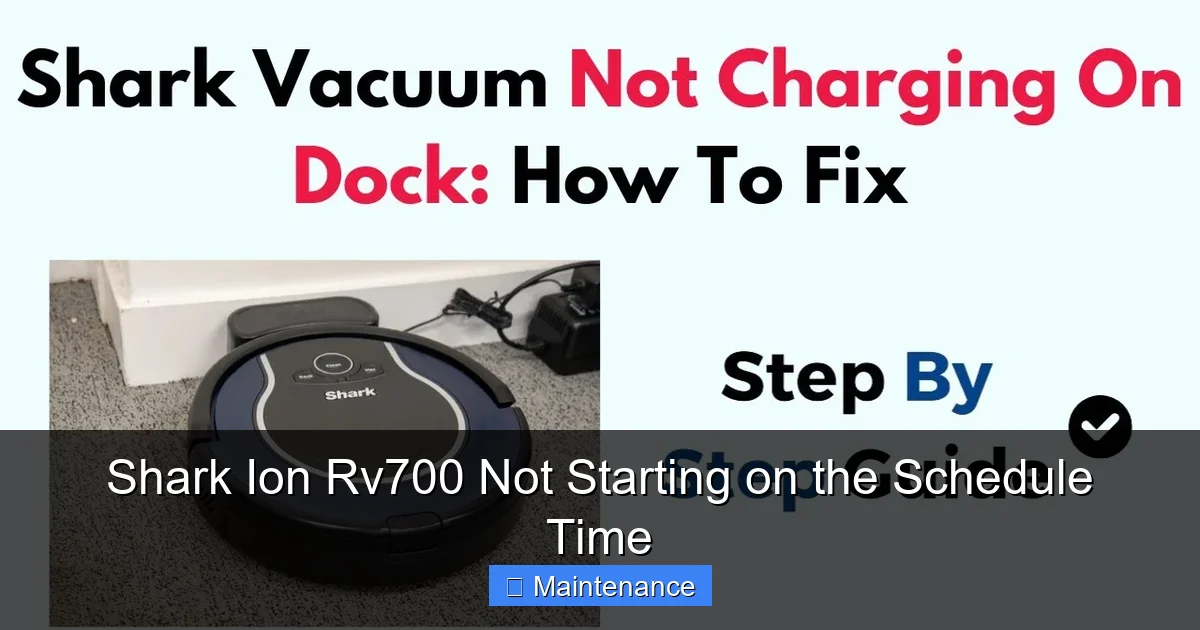
- Charging Base Connection: Ensure the metal charging contacts on both the robot and the base are clean. Wipe them with a dry microfiber cloth. Make sure the base is plugged into a working outlet and the LED is on. The robot must make a solid physical connection to charge.
- Base Placement: The base should be against a wall, with at least 3 feet of clear space on either side and 5 feet in front. If it’s crammed into a corner or behind furniture, the robot may struggle to dock properly and won’t charge reliably.
3. App and Software Glitches
Your smartphone app is the control panel. If it’s buggy or out of sync, the schedule won’t send.
- Outdated App: An old version of the SharkClean app can have compatibility issues with updated robot firmware or phone OS. Go to the App Store or Google Play and update it.
- Corrupted Schedule Data: Sometimes the schedule entry itself gets corrupted in the app’s cache. The fix is to delete the entire schedule and recreate it from scratch. Don’t just edit the time; start fresh.
- App Cache: On your phone, go to Settings > Apps > SharkClean > Storage, and “Clear Cache.” (Don’t clear data yet, as that logs you out). This forces the app to fetch fresh data from the cloud.
- Firmware Mismatch: The robot’s internal software (firmware) must be compatible with the app. In the app, go to Robot Settings > About > Check for Firmware Updates. Install any available updates.
4. “Do Not Disturb” and Other Schedule Modifiers
Shark includes helpful features that can inadvertently block your schedule.
- Do Not Disturb (DND) Mode: This is a big one. If DND is enabled, the robot will not start any scheduled cleanings during the set hours (e.g., 10 PM to 7 AM). Check the app’s main menu for a DND toggle. It’s easy to set and forget.
- Selected Rooms/Areas: If your schedule is set to clean only specific “Zone” or “Room” cleanups, but those zones aren’t mapped or are inaccessible, the robot may skip the run.
- Multiple Schedules Conflict: You might have two overlapping schedules. The app may prioritize one or get confused. Review all active schedules in the app.
5. Physical Obstructions and Environmental Factors
The robot is a physical object in a physical world.
- Base Not Powered: Sounds obvious, but check that the outlet is on and the power adapter is firmly plugged in. A loose connection can mean the base isn’t charging the robot.
- Robot Not on Base: The robot must be physically seated on the base for a scheduled start. If it’s cleaning or stuck somewhere else at the scheduled time, it will miss it. Ensure it has time to return and dock before the next scheduled start.
- Extreme Temperatures: The robot has operating temperature limits (usually 40°F to 95°F / 4°C to 35°C). If your home is very cold or hot, it may refuse to start for safety.
A Systematic Troubleshooting Guide: The “Power Cycle and Check” Method
Don’t just try things randomly. Follow this ordered checklist to efficiently diagnose the Shark Ion Rv700 not starting on schedule. Start at Step 1 and only proceed if the problem persists.
Visual guide about Shark Ion Rv700 Not Starting on the Schedule Time
Image source: i.ytimg.com
Step 1: The Universal Reset (Power Cycle Everything)
This resolves over 50% of transient issues.
- Turn off the robot: Press the power button on top until it shuts down.
- Unplug the charging base from the wall outlet. Wait 30 seconds.
- Restart your router: Unplug your Wi-Fi router and modem (if separate), wait 60 seconds, and plug them back in. Wait for all lights to stabilize (2-5 minutes).
- Replug the charging base. Ensure its power LED is on.
- Place the robot on the base. Press its power button to turn it on. Wait for it to connect to Wi-Fi (the app will show “Online”).
- Test: In the app, try a “Test Schedule” or manually start a cleaning. If it works, your original schedule should now work too.
Step 2: Verify the Schedule in the App
Now that connectivity is fresh, confirm the command is correct.
- Open the SharkClean app. Go to the Schedules section.
- Is the schedule for the correct day and time? Check AM/PM and time zone settings in the app (Settings > App Settings).
- Is the toggle switch next to the schedule turned ON (usually green)? It’s easy to accidentally tap it off.
- Is “Do Not Disturb” mode active during that time? If yes, disable it for testing.
- Delete and recreate the schedule. This wipes any corrupted data. Set a simple schedule for 5 minutes from now to test immediately.
Step 3: Diagnose the Wi-Fi Connection
If the test schedule still doesn’t trigger, the robot is likely offline.
- In the app, look at the robot’s status. Does it say “Online” or “Offline”? If offline, the problem is network-related.
- Check the charging base lights. A solid blue light typically means connected. A flashing or no light means no connection.
- Move the robot and base closer to your router for a direct test. If it connects and the schedule works, you have a signal strength issue. Consider a Wi-Fi extender or relocating the base.
- Confirm your phone is connected to the same 2.4GHz network as the robot. If you’re on 5GHz, the app may still control the robot locally via Bluetooth, but cloud schedules won’t work.
Step 4: Assess Battery Health
A connected but unresponsive robot might have a power issue.
- Look at the battery indicator in the app. What does it show when the robot is on the base?
- Perform a full manual clean. Does it die prematurely or seem sluggish?
- Try a different outlet for the charging base, in case the original outlet is faulty.
- If the robot is over 18 months old and shows poor runtime, a battery replacement (available from Shark or third parties) is the most likely permanent fix.
Step 5: Advanced: App and Account Refresh
If all else fails, we need to reset the digital relationship.
- Log out and back in: In the SharkClean app, log out of your account, then log back in. This forces a re-sync with the cloud.
- Remove and re-add the robot: In app settings, delete the robot from your account. Then, go through the full setup process again (press the Wi-Fi button on the robot, etc.) as if it were new. This clears any lingering pairing or cloud registration issues.
- Reinstall the app: Delete the app from your phone, reinstall it from the store, and log in. Re-add the robot.
The Battery: The Silent Schedule Killer
We’ve mentioned it, but let’s dive deeper. A failing battery is a master of disguise. It often presents not as “won’t charge” but as “won’t start on schedule.” Here’s why: The robot’s internal logic is designed to protect the battery from deep discharge. If the battery’s reported charge is below a safe threshold at the scheduled start time, the robot will simply not initiate the cleaning cycle. It’s a safety feature. You see no error; you just see a missed run.
Visual guide about Shark Ion Rv700 Not Starting on the Schedule Time
Image source: images-na.ssl-images-amazon.com
How to Test Battery Health Accurately
Don’t rely on the app’s percentage alone, which can be inaccurate on old batteries.
- Full Charge: Let the robot charge on the base for a full 3-4 hours with a solid green/blue light.
- Manual Runtime Test: Take the robot to an open area, start a “Clean All” cycle manually, and do not let it dock until it stops on its own. Time this from start to stop.
- Repeat: Do this 2-3 times. If the runtime is consistently less than 60 minutes for a full-home clean on a medium-pile carpet, the battery is worn out.
- Visual Check: If you’re comfortable, you can open the robot’s top cover (unplug it first!). Look for any swelling, leakage, or corrosion on the battery pack. If you see any of this, stop and replace the battery immediately.
Battery Maintenance Best Practices
To maximize lifespan, follow these rules:
- Use it regularly: Letting a lithium-ion battery sit at 0% or 100% for months degrades it. Regular, partial cycles are healthier than infrequent full discharges.
- Keep it cool: Don’t store or charge the robot in a hot garage or direct sunlight. Heat is the enemy of lithium batteries.
- Don’t store on the base: If you’re going away for a month, charge the battery to ~50%, then store the robot in a cool, dry place. Don’t leave it on the constantly-powered base.
Software Glitches and Firmware: The Digital gremlins
Your robot is a rolling computer. Like all computers, it needs updates.
The Importance of Firmware Updates
Shark periodically releases firmware updates for the Ion Rv700. These can fix known bugs, improve navigation, enhance Wi-Fi stability, and even adjust battery charging algorithms. An old firmware version might have a specific bug that causes schedule failures, which an update patched months ago. Always ensure your robot is on the latest firmware. The app should notify you, but you can manually check in Robot Settings > About > Check for Updates.
App Permissions and OS Compatibility
On your smartphone, the SharkClean app needs specific permissions to function correctly, particularly for notifications (which carry the schedule command). On Android, ensure it has “Notifications” and “Background Data” permissions. On iOS, check that Notifications are enabled and that Background App Refresh is on. Also, if you recently updated your phone’s operating system (iOS or Android), an older app version might be incompatible. This is why keeping the app updated is non-negotiable.
Clearing the Digital Cobwebs
As a last resort for software issues, perform a “Factory Reset” on the robot. This is different from just turning it off. Locate the small reset button (often a pinhole on the underside or side). With the robot powered on, use a paperclip to press and hold it for 10-15 seconds until you hear a chime or see lights flash. Warning: This will erase all maps, schedules, and settings. You will have to set up the robot from scratch, including re-mapping your home. This is a nuclear option, but it clears any deep-seated software corruption.
Preventive Maintenance for Reliable Scheduling
An ounce of prevention is worth a pound of troubleshooting. Build these habits to keep your Shark Ion Rv700 starting on time, every time.
Weekly and Monthly Health Checks
- Base Power: Once a week, glance at the charging base. Is the power light on? Is the cord secure?
- Connection Points: Monthly, wipe the charging contacts on the robot and base with a dry cloth.
- App Audit: Once a month, open the app and verify your schedules are still active and correct. Check for any pending firmware updates.
- Wi-Fi Health: Use a phone to check signal strength where the base is located. If it’s weak, consider a $30 Wi-Fi extender placed midway between your router and the base.
Optimal Base Placement Strategy
The location of the charging base is the single most important physical factor for reliable scheduling. It must be:
- On a hard, flat surface (not carpet).
- Against a wall for the robot to easily find it.
- With clear approach: At least 3 feet of open space on both sides and 5 feet in front. No furniture, curtains, or rugs blocking the path.
- In a central, open area of your home, but also within strong Wi-Fi range of your router.
- Away from large metal objects or appliances (refrigerators, filing cabinets) that can interfere with Wi-Fi signals.
Smart Scheduling Practices
- Avoid Overlap: Don’t schedule cleanings too close together. If a 90-minute clean finishes at 11:30 AM, don’t schedule the next for 11:45 AM. Give a 30-60 minute buffer for the robot to dock, charge, and be ready.
- Consider “Quiet Times”: If you have DND mode, use it! But remember to set it correctly. If you want cleanings at 10 AM, ensure DND ends by 9:45 AM.
- Seasonal Adjustments: In winter, your home might be drier and have more static-cling debris. You might need to schedule more frequent cleanings. In summer, with windows open, you might get more pollen and dust. Adjust schedules accordingly, but also check filters more often.
Conclusion: Getting Back to “Set and Forget”
Dealing with a Shark Ion Rv700 not starting on the schedule time is frustrating, but it’s a solvable puzzle. The key is methodical, logical troubleshooting. Start with the universal power cycle—it’s the digital equivalent of “turning it off and on again” and works shockingly often. Then, move through the connectivity, battery, app, and settings checks in order. Remember the golden rule: no Wi-Fi, no cloud schedule. Your robot’s schedule lives in the cloud, not in the robot itself.
By understanding this dependency, you can quickly isolate whether the problem is your home network, the robot’s hardware (like the battery), or the software (app/firmware). Implement the preventive maintenance tips—especially optimal base placement and monthly app audits—to create a robust system. Your goal is to make the conditions for a successful scheduled start so reliable that you can truly forget about it. If you’ve exhausted all these steps and your Shark Ion Rv700 still refuses to start on schedule, it may indicate a more serious hardware fault with the Wi-Fi module or mainboard. At that point, contacting Shark Customer Support is the next step, especially if your unit is still under warranty. But armed with this guide, you’ve already solved the problem for the vast majority of cases. Now, go enjoy your automated clean home!
Frequently Asked Questions
How do I completely reset my Shark Ion Rv700’s schedule?
Open the SharkClean app, go to Schedules, and delete all existing schedules. Then, create a new one from scratch. For a full system reset, perform a factory reset on the robot using the pinhole reset button, then re-set it up in the app, which will clear all network and schedule data.
How long should a Shark Ion Rv700 battery last before it affects scheduling?
A healthy battery should provide 60-90 minutes of runtime on a full charge. If your robot consistently runs for less than 45-50 minutes on a full charge, the battery is likely degraded and needs replacement. A weak battery is a primary reason for missed schedules.
My app shows the robot is online, but it still misses its schedule. Why?
First, double-check that “Do Not Disturb” mode is off and the schedule toggle is enabled. Then, verify the robot is physically on its charging base at the scheduled time. Finally, delete and recreate the schedule in the app to clear any corrupted data.
Can I set multiple schedules? Is there a limit?
Yes, you can create multiple schedules (e.g., different times on different days). The app interface allows for several. The practical limit is your own needs, but ensure schedules don’t overlap and that the robot has enough time to charge between runs.
What do the lights on the charging base mean for scheduling?
On the Shark Ion Rv700 base, a solid blue light typically indicates the base is powered and the robot is connected to Wi-Fi. A flashing blue light means the base is in setup mode. No light means no power. If the light is off, the robot cannot receive schedule commands.
When should I contact Shark Support about a scheduling problem?
After you have: 1) Power cycled the robot, base, and router. 2) Confirmed a stable 2.4GHz Wi-Fi connection. 3) Updated the app and firmware. 4) Recreated the schedule from scratch. 5) Tested the battery runtime and found it adequate. If the problem persists through all these steps, there may be a hardware fault, and you should contact Shark Support with your troubleshooting history.