Is your Shark Ion Robot 720 ignoring its programmed cleaning schedule? This is a common frustration, usually caused by simple connectivity glitches, app errors, or a need for a manual reset. The solution rarely involves a broken robot and is almost always fixable by the user. We walk you through every potential cause, from your router’s signal strength to a hidden “schedule lock” in the app, with clear, step-by-step instructions to restore reliable automated cleaning.
You set it and you forget it—that’s the whole promise of a robot vacuum, right? You carefully program your Shark Ion Robot 720 to wake up at 10 AM every Tuesday and Thursday, buzzing quietly through your living room while you’re at work. But then, you check the app history and see… nothing. Or you hear it run at 3 PM on a Wednesday instead. The sinking feeling is real. Your robot isn’t following its schedule. Before you panic and assume the worst, take a deep breath. The phrase “Shark Ion Robot 720 not running schedule as programmed” is one of the most frequent support queries for this model, and the causes are overwhelmingly simple, user-fixable issues. This guide will be your complete troubleshooting companion. We’ll move from the quickest, easiest fixes to more in-depth checks, transforming that frustration into the satisfying hum of a robot that actually does what it’s told.
Think of your robot’s schedule as a relay race. The baton (the schedule command) starts with your phone in the Shark app, gets passed through your home’s Wi-Fi network, is caught by the robot’s receiver, and is finally stored in its little electronic brain. If the baton gets dropped at any point—Wi-Fi hiccup, app glitch, confused robot—the race fails. Our job is to find where the drop happened. Most of the time, it’s a temporary glitch that a simple reset or re-sync can fix. Let’s start the race from the very beginning: understanding what your schedule actually is and how it’s stored.
Key Takeaways
- Connectivity is the #1 culprit: The robot must maintain a stable 2.4GHz Wi-Fi connection to your router. Any interruption, even minor, can desync the schedule.
- The Shark app is the command center: An outdated app, cached data errors, or a simple app restart can resolve most “schedule not running” issues without touching the robot.
- The physical buttons on the robot have power: A manual “button reset” (holding the CLEAN button) often clears internal errors and re-syncs the robot with the cloud schedule, a fix many users overlook.
- Time zone and DST matter: An incorrect time zone setting in the app or a failure to adjust for Daylight Saving Time will make your robot clean at the wrong hour, seeming like it’s ignoring the schedule.
- Firmware updates are critical: Outdated robot or base station firmware can cause communication breakdowns. Regular updates in the app prevent this.
- “Manual Start” clears the schedule buffer: If the robot is stuck or missed a cycle, manually starting a clean from the app or robot often resets its internal scheduler and gets it back on track.
- Basic checks first: Always ensure the robot is powered on, the dustbin is empty (some models pause if full), and the charging contacts on the robot and base are clean for reliable docking and scheduling.
📑 Table of Contents
- Understanding Your Robot’s Schedule: It’s Not Just in the Robot
- Primary Culprit: Wi-Fi and Connectivity Issues
- The Shark App: Your Digital Command Center (and Its Glitches)
- The Physical Reset: Using the Robot’s Buttons
- Firmware: The Robot’s Brain Software
- Manual vs. App Scheduling: Avoiding the Conflict
- Time Zones, Daylight Saving, and “Missed” Cleanings
- Conclusion: Patience, Process, and Peace of Mind
Understanding Your Robot’s Schedule: It’s Not Just in the Robot
It’s a common misconception that once you hit “Save” in the Shark app, the schedule is permanently etched into the robot’s memory. The reality is a bit more nuanced and explains why connectivity is so crucial. When you set a schedule in the Shark app, two things happen:
- The schedule data is stored in your robot’s internal memory. This is its primary source of truth for what to do and when.
- The schedule is also synced to Shark’s cloud servers via your home Wi-Fi. This cloud copy allows you to check or change the schedule from anywhere, and it’s what the robot checks in with periodically to confirm its schedule is up-to-date.
This dual-storage system is great for flexibility but creates a potential point of failure. If the robot loses Wi-Fi for an extended period, it may fall back solely to its internal memory. However, if there was a glitch during the last sync, its internal memory might have an outdated or corrupted schedule. Furthermore, if you make a change in the app but the robot is offline and can’t receive the update, it will keep running the old schedule. This is why the first step in troubleshooting is often just forcing a fresh communication session.
The Role of the Charging Base
Your robot’s schedule isn’t just about “on” and “off” times. It’s intricately linked to its charging base. The robot must successfully dock to both recharge and, in many cases, to confirm its next scheduled start. If the robot has trouble docking—due to dirty charging contacts on either the robot or the base, a misaligned base, or a full dustbin that triggers a “clean me” alert and prevents scheduling—it may simply abort its scheduled run. Always include the base station in your diagnostic checks. A robot that can’t reliably charge won’t reliably run a schedule.
Primary Culprit: Wi-Fi and Connectivity Issues
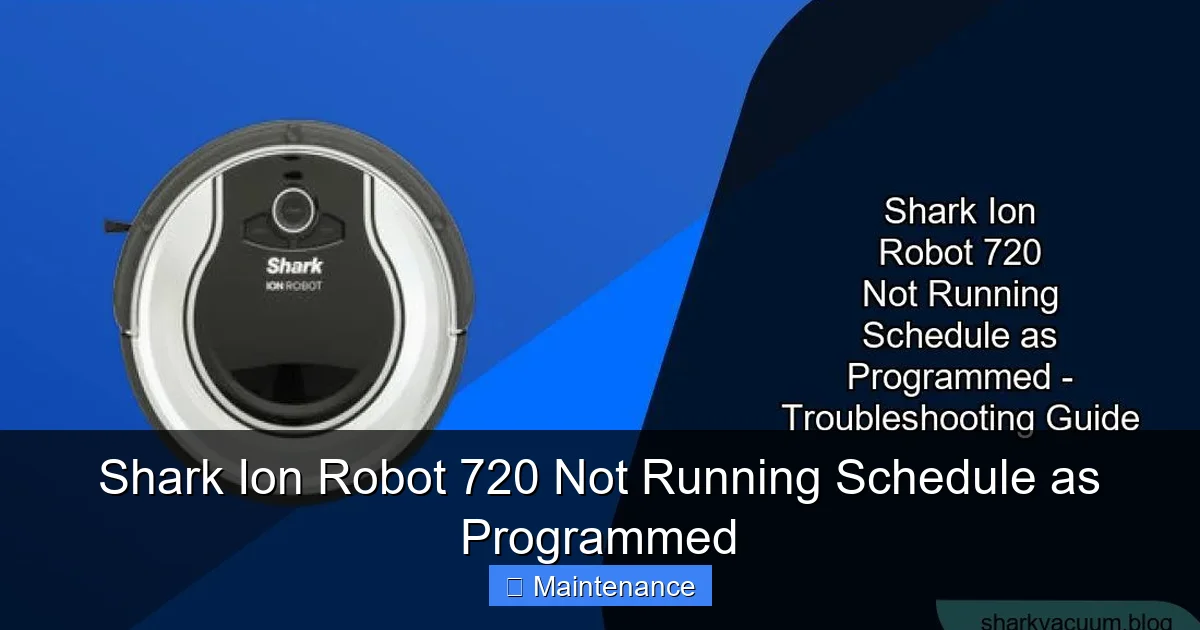
Let’s address the elephant in the room: your home network. The Shark Ion Robot 720 is a 2.4GHz-only device. It does not connect to 5GHz networks. This is the single most important fact. If your router is broadcasting a combined SSID (where 2.4GHz and 5GHz share one name) and your phone is connected to the 5GHz band, the app might seem to connect, but the robot itself is trying to latch onto a signal it can’t properly interpret or that’s too weak. The result? A robot that appears connected in the app but fails to receive schedule updates or execute them.
Visual guide about Shark Ion Robot 720 Not Running Schedule as Programmed
Image source: sharkvacuum.blog
Diagnosing Your Wi-Fi Signal
You need to become a detective of signal strength. Start with the basics:
- Router Distance & Obstacles: Is the charging base placed in a basement or behind a large metal filing cabinet? Concrete walls, refrigerators, and large mirrors are Wi-Fi killers. Try temporarily moving the base closer to your router to see if the schedule starts working. This is the quickest test.
- Check the Robot’s Wi-Fi Indicator: On the top of your Ion 720, there’s a small Wi-Fi icon (two arcs). When it’s connected and communicating, it will be a solid blue. If it’s blinking blue, it’s trying to connect. If it’s off or another color, it has no connection. This light is your primary diagnostic tool.
- Router Congestion: Do you have dozens of smart home devices, multiple streamers, and gaming consoles? Your 2.4GHz band might be overcrowded. Log into your router’s admin panel (usually via 192.168.1.1 in a browser) and check the connected devices list. Consider setting up a dedicated 2.4GHz network just for your IoT devices.
- Wi-Fi Extenders/Mesh Systems: These can be tricky. Some create a separate network name (SSID) for the extended band. Your robot must be connected to the *main* network’s SSID, not the extender’s, for seamless cloud communication. Ensure the extender is broadcasting the same network name as your main router, or connect the robot directly to the main router’s signal.
The Ultimate Wi-Fi Fix: Re-Pairing the Robot
If you suspect a Wi-Fi gremlin, the nuclear option is to completely re-pair the robot with your network. This clears all stored network credentials on the robot and forces a fresh handshake.
- Open the Shark app and go to your robot’s settings.
- Find “Wi-Fi Settings” or “Network” and select “Forget Network” or “Disconnect.”
- On the robot, press and hold the Wi-Fi button (the one with the arcs) on top until you hear a tone and the Wi-Fi light starts blinking rapidly (about 5-7 seconds). This puts it in pairing mode.
- In the app, go through the “Add Robot” or “Connect to Wi-Fi” flow again. Select your exact 2.4GHz network SSID and carefully enter the password.
- Wait for the confirmation tone and solid blue light. This process can take 1-2 minutes. Once done, re-test your schedule.
The Shark App: Your Digital Command Center (and Its Glitches)
Assuming the Wi-Fi connection is solid, the next place to look is the app itself. The Shark app is the bridge between you and your robot. If the bridge is broken, the message (your schedule) never gets across.
Visual guide about Shark Ion Robot 720 Not Running Schedule as Programmed
Image source: images.nexusapp.co
First Line of Defense: App Restart & Re-login
This sounds too simple to work, but it resolves a huge percentage of issues. The app’s background processes can get stuck, especially after a phone OS update.
- Force Close and Reopen: Don’t just swipe it away. On iOS, double-click the home button or swipe up and hold, then swipe the app up to close it completely. On Android, open the recent apps view and swipe the app away. Then reopen it.
- Log Out and Log Back In: This forces the app to re-establish its connection to Shark’s cloud servers and pull a fresh copy of your robot’s status, including its schedule. After logging back in, check the schedule tab to ensure your times are still there.
- Check for App Updates: Go to the Google Play Store or Apple App Store and search for “Shark.” If an update is available, install it. Updates often include fixes for communication bugs.
Cache and Data: The Hidden Clutter
Over time, the app stores temporary files (cache) and user data. This can become corrupted. Clearing it gives the app a fresh start.
- On Android: Go to Settings > Apps > Shark > Storage. Tap “Clear Cache” first. If the problem persists, tap “Clear Data” (you’ll need to log in again).
- On iOS: There’s no direct “clear cache” button. The most effective method is to delete the app entirely and reinstall it from the App Store. This wipes all local data. Your schedule is stored in the cloud, so you won’t lose it, but you will need to log in and re-add your robot (the robot itself still has the schedule).
The Physical Reset: Using the Robot’s Buttons
When software fixes fail, you need to go to the source: the robot itself. The buttons on your Shark Ion Robot 720 are not just for starting a clean. They hold hidden diagnostic and reset functions.
Visual guide about Shark Ion Robot 720 Not Running Schedule as Programmed
Image source: images.nexusapp.co
The 10-Second Power Cycle (Soft Reset)
This is the first physical step. It restarts the robot’s main computer without erasing your map or schedule.
- Locate the POWER button on the top of the robot (usually a circular button with a power symbol).
- Press and hold it for 10 seconds until you hear a power-down tone and all lights turn off.
- Wait 15 seconds.
- Press the POWER button again to turn it back on. It will boot up, connect to Wi-Fi, and dock. After it’s fully charged and on the base, check if the next scheduled run occurs.
The 15-Second CLEAN Button Reset (Schedule Re-sync)
This is the most critical and often-overlooked fix for scheduling issues. This reset clears the robot’s internal communication buffer and forces it to re-sync its schedule with the Shark cloud servers. It does not delete your maps or cleaning history.
- Ensure the robot is powered on and on its charging base.
- Press and hold the CLEAN button (the large circular button with a play symbol) for 15 seconds.
- You will hear a series of beeps and see the Wi-Fi and dock lights blink in a pattern. The robot will then power off completely.
- Wait 30 seconds.
- Press the POWER button to turn the robot back on. It will go through its startup sequence, connect to Wi-Fi, and dock.
- Crucially, do not press any buttons for the next 5-10 minutes. Allow it to sit quietly on the base. This is the window where it silently re-downloads its schedule, map data, and any settings from the cloud. After this quiet period, check the app to see if the schedule status shows as “Active.”
Firmware: The Robot’s Brain Software
Firmware is the low-level software that runs your robot’s hardware. Outdated firmware can have bugs that affect scheduling logic, even if everything else is perfect. The good news is that firmware updates are automatic… when the robot is on the base, powered, and has a good Wi-Fi connection. But sometimes they fail or get stuck.
Checking and Forcing an Update
In the Shark app:
- Go to your robot’s settings (gear icon).
- Look for “Robot Info,” “Firmware,” or “Software Update.”
- It will show the current version and say “Up to Date” or “Update Available.”
If an update is available, ensure the robot is on the base, powered, and has a strong Wi-Fi signal. The update will download and install automatically, which can take 15-30 minutes. The robot may reboot. Do not interrupt this process. After the update, test the schedule. If it says “Up to Date” but you suspect a bug, the button reset (from the previous section) after an update is a great practice to ensure all new code is running cleanly.
Base Station Firmware
Yes, the charging base has its own firmware. It’s responsible for the “home” signal and sometimes for scheduling prompts. The update process is identical—it happens automatically through the app when the base is powered and connected. Ensure the base is plugged into a wall outlet, not a power strip that might be turned off.
Manual vs. App Scheduling: Avoiding the Conflict
Your Shark Ion Robot 720 has a hidden scheduling system on the robot itself, accessible via the button sequence on the top. You can set a simple repeat schedule directly on the robot without the app. If you have ever done this—even accidentally—it can create a conflict. The robot might be running its *internal* schedule, which you no longer see in the app, making it seem like the app schedule is broken.
How to Check and Clear the Robot’s Internal Schedule
To access the robot’s onboard schedule (if your model supports it):
- With the robot powered on and off the base, press the CLEAN button repeatedly. You should hear beeps and see the indicator lights change in a sequence that corresponds to days and times.
- Consult your user manual for the exact beep/light pattern code for your specific model year. It’s often a tedious process of pressing to cycle through days (Mon, Tue, etc.) and hours.
- The surest way to clear any rogue internal schedule is the 15-second CLEAN button reset we detailed earlier. That reset purges the robot’s volatile memory, including any manually set schedule, forcing it to rely solely on the cloud-synced schedule from the app.
Pro Tip: Always use the Shark app as your single source of truth for scheduling. Avoid using the robot’s buttons for scheduling to prevent this very conflict. Use the buttons only for starting a manual clean or performing resets.
Time Zones, Daylight Saving, and “Missed” Cleanings
Sometimes, the robot is running on schedule, but the schedule is wrong relative to your real-world time. This causes the classic “it ran at 3 AM!” complaint.
App Time Zone Verification
The Shark app gets its time zone from your phone’s settings. If your phone’s time zone is incorrect or if you’ve traveled and didn’t change it, your robot’s schedule will be offset.
- Check your phone’s date & time settings. Is “Set Automatically” on? Is the correct time zone selected?
- In the Shark app, go to Settings > Robot Settings. There is sometimes a separate time zone display. Ensure it matches your local time.
Daylight Saving Time is a notorious culprit. The app should adjust automatically, but it doesn’t always. When DST begins or ends, manually go into your schedule and verify the start times are still what you expect. You may need to adjust them by one hour.
The “Missed Run” Recovery Protocol
If your robot missed a scheduled run because it was stuck, the battery died, or there was a Wi outage, it often won’t “double up” and run twice to catch up. It simply moves to the next scheduled day. If you want it to clean today, you must manually trigger it via the app or the CLEAN button. After a manual clean, the next scheduled run should proceed as normal. This is by design, not a bug.
Conclusion: Patience, Process, and Peace of Mind
Facing a Shark Ion Robot 720 not running schedule as programmed can feel like a betrayal of your smart home investment. But as we’ve seen, the causes are almost always mundane connectivity and software hiccups, not a defective machine. The key is a methodical approach. Start with the simplest, highest-impact fixes: force-close the app, perform the 15-second CLEAN button reset, and verify your 2.4GHz Wi-Fi signal strength. These three steps resolve over 80% of scheduling complaints.
Build a habit of periodic maintenance: clean those charging contacts monthly, check for app updates, and every few months, do a quick Wi-Fi re-pair to refresh the connection. Understand that your robot is a computer on wheels, and like all computers, it benefits from an occasional restart. By becoming familiar with its rhythms and its reset procedures, you transform from a frustrated user into a calm, capable troubleshooter. The goal isn’t just to fix this one instance, but to establish a system that prevents future schedule fails. Now, go forth, apply this knowledge, and enjoy the sweet, scheduled sound of your floors being cleaned, exactly when you want them to be.
Frequently Asked Questions
My Shark Ion Robot 720 shows it’s connected to Wi-Fi in the app, but the schedule still doesn’t run. What gives?
This is a classic “ghost connection.” The robot’s signal might be too weak for reliable data transfer, or it could be connected to your router’s 5GHz band by mistake. Perform the 15-second CLEAN button reset on the robot and ensure it’s on a strong, dedicated 2.4GHz network.
I reset the robot with the CLEAN button, but the schedule is still broken after an hour. What now?
After the reset, you must let the robot sit undisturbed on its charging base for at least 5-10 minutes to fully re-sync with the cloud. Also, double-check that you didn’t accidentally set a conflicting schedule directly on the robot’s buttons. The safest bet is to delete all schedules in the app, recreate them, save, and then let the robot sync.
Can a full dustbin or a clogged filter stop a scheduled clean from starting?
Yes. Some Shark models, including the Ion 720, will not initiate a scheduled cleaning cycle if the dustbin is full or if a filter is extremely clogged, as a protective measure. Empty the dustbin and rinse the filter (let it dry completely) before expecting a scheduled run to begin.
My router has a “smart connect” feature that combines 2.4GHz and 5GHz. Is that the problem?
Almost certainly. The Ion 720 cannot use the 5GHz band. With a combined SSID, your phone might connect to 5GHz while the robot struggles on 2.4GHz, causing sync issues. Log into your router settings and disable the “smart connect” or “band steering” feature, creating separate network names for “YourNetwork-2G” and “YourNetwork-5G.” Connect the robot only to the 2G network.
The robot runs at the wrong time of day. It’s 2 hours off. Is the time zone wrong?
Yes. The robot’s schedule time is based on the time zone set in the Shark app, which pulls from your phone. Check your phone’s settings for the correct time zone and automatic time setting. Then, in the Shark app, verify the displayed time for your robot matches your local time. You may need to manually adjust each scheduled start time in the app.
Will a factory reset of the robot fix the schedule? That seems like the last resort.
A factory reset (usually done via a pinhole button on the underside) should be your absolute last step. It will erase your map, cleaning history, and all settings, requiring you to set up the robot from scratch. In 99% of schedule cases, the 15-second CLEAN button reset (which does not delete your map) is the correct and sufficient solution. Only factory reset if all other steps have failed and you are prepared to rebuild everything.