Demo mode on a KitchenAid oven is a showroom feature that disables heating elements while lights and displays work. It’s often accidentally activated during power outages or cleaning. Turning it off typically requires a specific button sequence unique to your oven’s model series. This guide provides the exact key combinations for major KitchenAid lines, crucial safety warnings, and clear troubleshooting steps if the standard reset fails. Always consult your specific model’s manual first, and know when to call a professional to avoid damage.
So you’ve gone to preheat your trusty KitchenAid oven, only to find that the lights come on, the digital display is bright and beautiful, but… nothing heats up. The fan might even whir, but the oven stays stone-cold. Panic sets in. Is it broken? Did the heating element finally give out? Before you call a repairman or start shopping for a new oven, take a deep breath. There’s a very good chance your appliance hasn’t failed you at all. It has simply been switched into a special, harmless—but incredibly frustrating—state called Demo Mode. This comprehensive guide will walk you through exactly what demo mode is, why your oven might have entered it, and, most importantly, how to turn off demo mode on your KitchenAid oven, no matter which model you own.
We’ll break it down by the major KitchenAid product lines, from the classic Double Wall Ovens to the modern ranges with connected touchscreens. We’ll provide the specific button combinations, emphasize crucial safety steps, and give you a clear troubleshooting path if the first method doesn’t work. Think of this as your decoder ring for a silent, showroom-only feature that’s surprisingly easy to accidentally trigger. Let’s get your oven back to its true calling: cooking your food.
Key Takeaways
- Demo mode is intentional: It’s a factory/showroom setting that allows the display and lights to function without activating heating elements for safety and demonstration purposes.
- Common triggers: A power surge, outage, or accidentally holding certain buttons during cleaning can activate demo mode, making your oven appear broken.
- Model-specific codes: There is no universal “off” button. The correct reset sequence depends entirely on your KitchenAid oven’s specific model and control board type.
- Safety first: Always unplug the oven or turn off the circuit breaker before attempting any internal resets or inspecting the control board to prevent electric shock.
- Find your model number: The model number, usually on the oven door frame or back panel, is the key to finding the correct instructions in your manual or online.
- If sequences fail, power cycle: A complete power disconnect (unplugging or breaker off) for 5+ minutes is a critical first step before trying button sequences again.
- Call a pro when unsure: If you cannot identify your model or the standard sequences don’t work, a certified appliance technician can safely diagnose and reset it.
📑 Table of Contents
- Understanding Demo Mode: What It Is and Why Your Oven Has It
- First Steps: Preparation and Identification Before You Press Anything
- Decoding the Sequences: How to Turn Off Demo Mode by KitchenAid Series
- What to Do When the Standard Fixes Don’t Work
- Prevention and Best Practices
- When to Call a Professional Appliance Technician
- Conclusion: Your Oven is Probably Just Shy
Understanding Demo Mode: What It Is and Why Your Oven Has It
Before we start pressing buttons, it’s helpful to understand exactly what we’re dealing with. Demo Mode, sometimes called “Showroom Mode” or “Display Mode,” is a built-in software setting designed by manufacturers like KitchenAid for one primary purpose: retail showrooms.
The Purpose of a “Showroom” Setting
In a store, an oven on the sales floor needs to look and feel alive. The interior light should turn on when you open the door. The digital display should show the time, a dazzling clock, or a demo cycle. The convection fan might even spin to show it works. But the last thing a retailer wants is for dozens of demo ovens to be blasting heat into a crowded appliance store, creating a fire hazard and a massive electricity bill. Demo mode solves this. It allows all the user-interface elements—lights, displays, sounds, fans—to operate normally while completely disabling the heating elements and any powered vents. The oven looks fully functional but produces zero heat.
How You Accidentally Trigger It
This isn’t a setting you’d normally toggle at home. So how does it happen? The most common culprits are:
- Power Interruptions: A significant power outage, a tripped breaker, or even a brief power surge can sometimes cause the oven’s control board to “reboot” in a default state, which for some models is demo mode. It’s the control board’s way of saying, “I’m not sure what state I was in, so I’ll start in the safest, non-heating showroom mode.”
- Button Mashing During Cleaning: Many people, when trying to clean the control panel, will hold down multiple buttons or press them in a rapid, unusual sequence. Some of these combinations are hidden “service” or “demo” mode entry points. You might have done this unintentionally.
- After a Service Call: Sometimes, a technician may put the oven into demo mode for testing and forget to switch it back.
- Faulty Control Board: In rarer cases, a failing control board can corrupt its memory and default to demo mode.
The key symptom is always the same: a fully powered, lit-up, responsive interface that refuses to generate any heat. If your oven has a cooling fan that runs for a while after use, that fan might also run continuously in demo mode. The “Preheat” function will never complete.
First Steps: Preparation and Identification Before You Press Anything
Rushing into button combinations without a plan can lead to frustration or, in worst-case scenarios, changing other settings you didn’t intend to. A few minutes of prep work will save you time and headache.
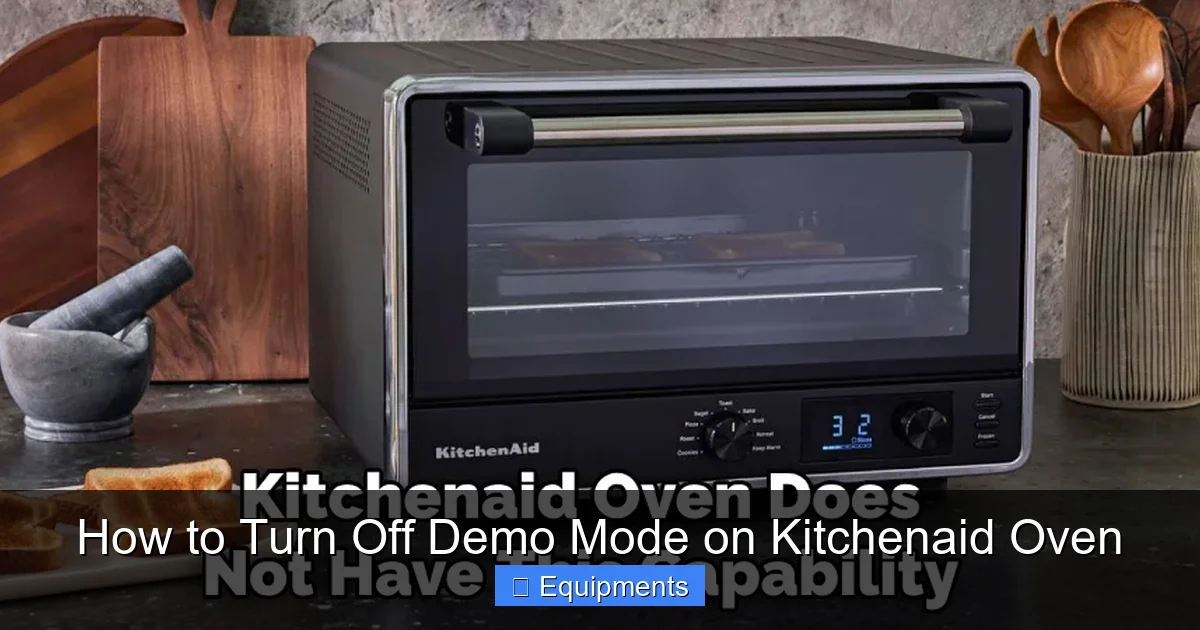
Visual guide about How to Turn Off Demo Mode on Kitchenaid Oven
Image source: thekitchenix.com
1. Consult the Manual (Your Primary Weapon)
Your oven’s user manual is the single best source of truth. Look in the index or troubleshooting section for “Demo Mode,” “Showroom Mode,” “Display Mode,” or “Service Mode.” KitchenAid manuals often have a dedicated section for this exact problem. If you’ve misplaced the physical copy, you can almost always find a free PDF download online. Go to the KitchenAid official website, navigate to “Customer Support” or “Owner’s Support,” and enter your model number.
2. Locate Your Exact Model Number
This is non-negotiable. The reset sequence varies between a KBSN500ESS and a KDDC10JSS. The model number is typically on a silver sticker in one of these locations:
- On the oven door frame, visible when you open the door.
- On the side trim or edge of the oven cabinet (you may need to pull the oven out slightly, but unplug it first!).
- On the back of the control panel assembly (requires removing the panel, which is more advanced).
- Sometimes on the rear of the appliance, near the base.
It will be a series of letters and numbers, like KOSE500ESS or KDCG500ESS. Write it down.
3. Perform a Hard Power Reset
Before trying any specific sequences, perform a complete power cycle. This is the most common fix and should always be your first attempt.
- For a freestanding range: Unplug the oven from the wall outlet. If it’s hardwired, turn off the dedicated circuit breaker in your electrical panel.
- For a built-in wall oven: Turn off the circuit breaker that controls it. Do not just turn off the oven knob or control panel.
- Leave it completely powered down for a full 5-10 minutes. This ensures the control board’s memory fully clears.
- Restore power. The clock will likely be flashing. Set the time. Test if the oven heats. If it now heats, demo mode has been cleared by the power reset. If not, proceed to the model-specific steps.
Decoding the Sequences: How to Turn Off Demo Mode by KitchenAid Series
KitchenAid groups its products into series that often share similar control interfaces and software. The reset method is usually a specific, timed button press on the main control panel. Below are the most common and verified sequences. Always perform the hard power reset first, then try these sequences on a powered-on oven with the clock displayed.
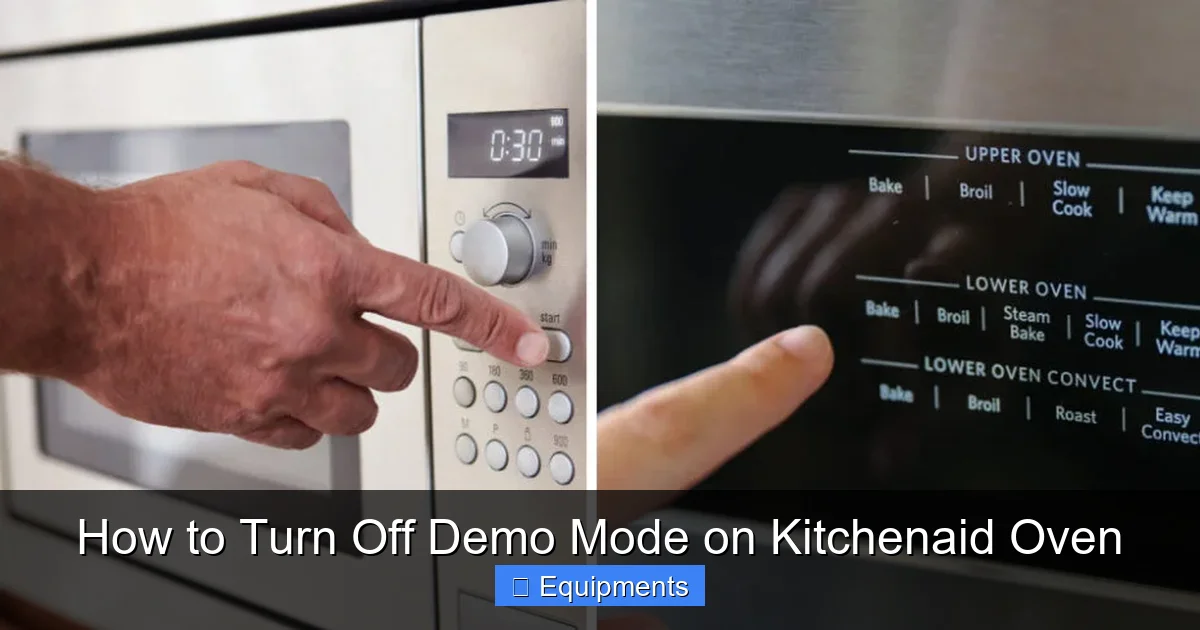
Visual guide about How to Turn Off Demo Mode on Kitchenaid Oven
Image source: thekitchenix.com
For Professional and Architect Series Models (Most Common)
These are the high-end, often stainless steel, models with a prominent digital display and a “PROFESSIONAL” or “ARCHITECT” badge. The control panel usually has a dedicated “Clock” button and a “Cancel/Off” button.
Method 1 (Most Frequent):
- Ensure the oven is powered on and the clock is displayed (not a timer or cooking mode).
- Press and hold the CLOCK button for approximately 5-10 seconds.
- You may hear a beep or see a message like “dEMO” or “SHOW” appear and then disappear from the display.
- Release the button. The oven should now exit demo mode. Try setting a bake cycle.
Method 2 (If Method 1 Fails):
- Press the CANCEL/OFF button.
- Immediately press and hold the CLOCK button for 5-10 seconds.
- Release both. Test the oven.
Models this often works for: KBSN500ESS, KBSN550ESS, KOSE500ESS, KDCG500ESS, KDDC10JSS, and many other 5-digit model numbers starting with K.
For Classic Series and Some Lower-End Models
These models might have a simpler control panel with fewer dedicated buttons, sometimes using a knob and a few push-buttons.
Sequence:
- With the oven on and clock showing, press and hold the BROIL button (or sometimes the BAKE button) for 5-10 seconds.
- Alternatively, try holding the TIMER button.
- Listen for a confirmation beep or watch for a display change.
- Release and test.
Note: On some very basic models, holding the CANCEL button for 10 seconds is the reset for multiple hidden modes, including demo.
For Models with a “Menu” or “Tools” Button (Newer Touch Panels)
Some newer KitchenAid ovens, especially those with Wi-Fi and full-touch interfaces, have a “Menu,” “Settings,” or “Tools” button that accesses a hidden service menu.
Sequence:
- From the clock screen, press the MENU or SETTINGS button.
- Use the navigation dial or arrow keys to scroll to an option that might say “Demo Mode,” “Showroom,” or “Display Demo.”
- Select it and change the setting to “Off” or “No.”
- Exit the menu. The oven may reboot itself.
If you don’t see this option, the demo mode might be controlled only by the timed button-press sequences mentioned earlier.
The “Nuclear Option”: Control Board Reset via Jumper or Unplugging
If all button sequences fail, the demo mode flag may be stubbornly stored in the control board’s non-volatile memory. A deeper reset is needed.
- Extended Unplug: Unplug the oven or turn off the breaker for a full 24 hours. Some control boards have a backup capacitor that can hold a charge and memory for many hours. This is surprisingly effective for hard locks.
- Service Mode Jumper (Advanced): Some KitchenAid control boards have a small, 2-pin plastic connector (a ” jumper”) labeled “DEMO” or “SERVICE.” Disconnecting this for a few seconds while the oven is powered off can force a reset. This requires removing the oven’s back panel or control panel assembly. Only attempt this if you are comfortable with basic appliance electronics and have unplugged the unit. Consult a service manual for your specific model before trying this.
What to Do When the Standard Fixes Don’t Work
You’ve tried the power cycle. You’ve held the Clock button for 30 seconds. You’ve held every button in every combination. The oven is still in demo mode. Now what?
Visual guide about How to Turn Off Demo Mode on Kitchenaid Oven
Image source: thekitchenix.com
Confirm It’s Actually Demo Mode
First, double-check the symptoms. Are you absolutely sure it’s not a different issue?
- Check for error codes: Does the display show a fault code (like F1, F2, F3, etc.)? That indicates a different problem, not demo mode.
- Listen for the relay click: When you set a bake cycle, get close to the oven. Do you hear a faint, solid CLICK from inside the control panel area (usually at the bottom or back)? That’s the relay that sends power to the heating elements engaging. If you hear no click, it’s likely demo mode or a failed relay. If you hear a click but no heat, the element or wiring may be faulty.
- Test both bake and broil: Demo mode disables all heating. Try activating broil. If the broil element doesn’t glow red-hot (it will get very hot quickly, so check briefly), demo mode is still active.
Search by Model Number Online
Go to a search engine and type: “[Your Exact Model Number] demo mode reset” or “[Your Model Number] turn off showroom mode”. Look for results from appliance repair forums like ApplianceBlog, PartSelect, or even YouTube. Often, a user with your exact model has posted the solution. Be cautious of random websites—prioritize results from repair communities or the official KitchenAid site.
Access the Hidden Service Menu
Many ovens have a secret service menu that technicians use, which often contains a demo mode toggle. The entry sequence for this is different from the simple user reset. A common sequence is: Cancel > Cancel > Start or Cancel > Clock > Start within a few seconds. These are highly model-specific. Searching online for “[Your Model Number] service menu” is your best bet here.
Prevention and Best Practices
Once you’ve successfully exited demo mode, you’ll want to avoid a repeat performance. While some power-related triggers are unavoidable, you can minimize risks.
Stabilize Your Power Supply
If you live in an area with frequent brownouts or surges, consider plugging your oven (if it’s a freestanding range with a plug) into a high-quality surge protector. For hardwired ovens, a whole-home surge protector installed at your electrical panel is a great investment for all your appliances.
Be Mindful During Panel Cleaning
When wiping down the control panel, avoid holding multiple buttons down simultaneously or pressing them in rapid, unusual sequences. A simple spray of cleaner on a cloth and gentle wiping is sufficient. Never spray cleaner directly onto the panel where it can seep into button crevices and cause shorts or unintended inputs.
Document Your Reset
Once you find the correct sequence for your model, write it down! Stick a small note on the back of the oven or inside a cabinet door. Future you (or a house-sitter) will be eternally grateful. Include the model number and the exact button combo.
Understand the “Demo Mode” Indicator
Some newer KitchenAid ovens will actually display the word “DEMO” or “SHOW” on the screen when the mode is active. If you see this, you know exactly what you’re dealing with. If you don’t see it, but the oven has all the symptoms, it’s still almost certainly demo mode, just a silent variant.
When to Call a Professional Appliance Technician
There is no shame in calling for help. Appliances are complex, high-voltage systems. Here are the definitive signs that it’s time to pick up the phone:
- You cannot find your model number. A technician can identify it visually in seconds.
- All verified sequences for your model series fail. The control board may be faulty or corrupted in a way that requires professional diagnostic tools.
- You are uncomfortable removing panels or accessing internal components. Safety is paramount. Working on a 240-volt appliance without proper knowledge is dangerous.
- The oven displays an error code in addition to having no heat. This suggests a secondary problem that needs professional diagnosis.
- You hear the relay click, but the oven still doesn’t heat. This points to a failed heating element, a broken high-limit thermostat, or a wiring issue—none of which are related to demo mode.
A certified technician will have access to official service documentation, the correct service menu entry sequences, and the tools to test voltages and components safely. They can reset the demo mode in moments and also inspect for any underlying issues that might have caused the lock-up in the first place.
Conclusion: Your Oven is Probably Just Shy
Finding your KitchenAid oven stuck in demo mode is a moment of sheer frustration, but it’s almost always a software hiccup, not a hardware failure. It’s your oven putting on its showroom face when it should be getting down to business. By following the structured approach in this guide—starting with the universal hard power reset, then moving to model-specific button sequences, and finally seeking professional help if needed—you can confidently turn off demo mode on your KitchenAid oven and restore its heating function.
Remember the golden rules: Know your model number, unplug for a true reset, and never guess at internal components. With a little patience and the right information, you’ll have your oven preheating and baking, roasting, and broiling again in no time. You’ve got this!
Frequently Asked Questions
Why did my KitchenAid oven go into demo mode by itself?
It’s most commonly triggered by a power interruption like an outage or a tripped breaker. The control board can reboot into this safe, non-heating showroom mode as a default when it experiences an unexpected power loss.
How can I tell for sure my oven is in demo mode and not broken?
The telltale signs are: the clock and display work, lights turn on, and fans may run, but absolutely no heat is produced from any element (bake or broil) and preheat never completes. You also won’t hear the internal relay click when starting a cook cycle.
Will turning off demo mode affect my oven’s clock or other settings?
No. Exiting demo mode simply re-enables the heating circuits. It does not reset the clock, erase saved preferences, or clear any other user settings. Your oven will return to normal operation with all its previous configurations intact.
What if the button sequence for my model doesn’t work?
First, ensure you performed a complete 5-10 minute power disconnect beforehand. Then, try variations like holding the buttons for a full 15 seconds. If it still fails, search online for your exact model number plus “service menu” or “demo mode.” The final step is to consult a professional technician.
Can demo mode damage my oven if left on?
No. Demo mode is a safe, low-power state designed for showrooms. Leaving it on will not cause damage, but it will prevent the oven from cooking. The only “damage” is your inability to use the appliance until it’s reset.
Is the demo mode reset covered under my warranty?
Warranties cover defects in materials and workmanship. An accidental activation of demo mode is considered a user/software interface issue, not a defect, so it typically isn’t a warranty-covered repair. However, if a technician needs to come out, you should call to check your specific warranty terms.