Resetting a Crock Pot is simple and can solve most error or performance issues. This guide walks you through the exact steps, explains why a reset works, and offers handy tips to keep your slow cooker running like new.
Key Takeaways
- Understanding How To Reset Crock Pot: Provides essential knowledge
📑 Table of Contents
Introduction: Why Resetting Your Crock Pot Matters
Imagine you’re halfway through a hearty beef stew, and the display flashes an error. You’ve probably felt that pang of frustration. The good news? Most Crock Pot hiccups can be fixed with a simple reset. Resetting isn’t a magic trick; it’s a practical way to clear glitches, recalibrate sensors, and give the appliance a fresh start.
In this article we’ll walk you through every reset method, explain the science behind it, and share everyday habits that keep your slow cooker humming. Whether you own a classic 4‑quart model or a high‑tech programmable unit, the steps are easy to follow. Let’s get your Crock Pot back to perfect simmer mode.
1. Understanding How a Crock Pot Works
1.1 Basic Components
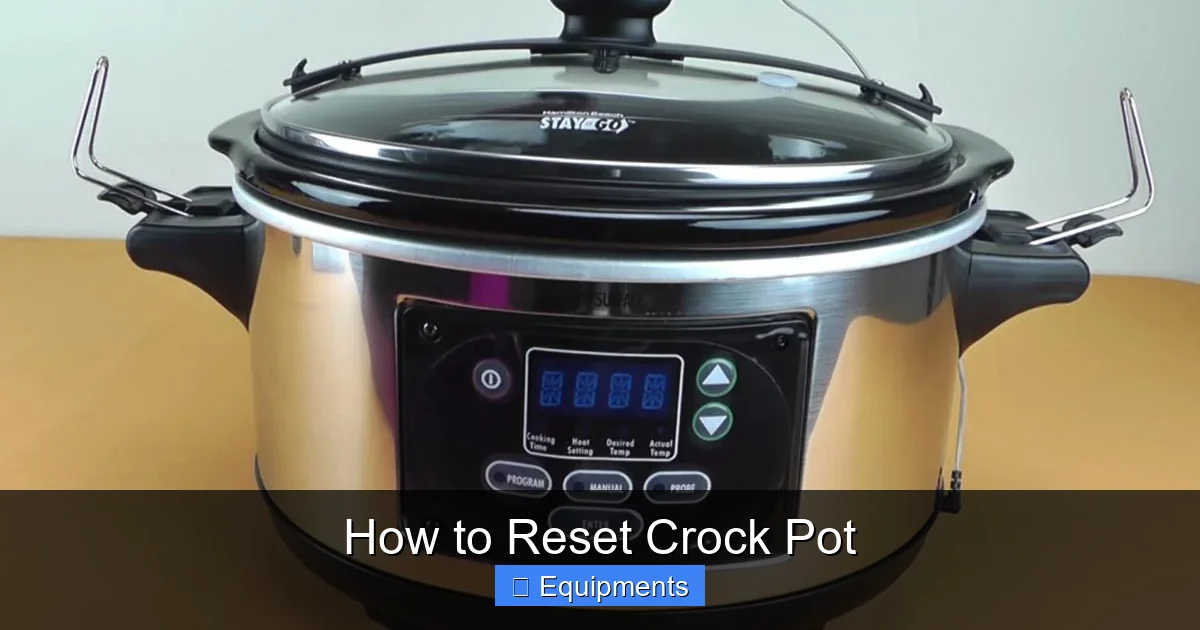
A Crock Pot has three main parts:
Visual guide about How to Reset Crock Pot
Image source: kitchenflock.com
- Heating element: Generates low, steady heat.
- Control board: Interprets button presses and runs timers.
- Thermal sensor: Monitors temperature and signals the board.
When any of these components receive conflicting data, the control board may display an error. A reset clears the stored data, allowing the board to start fresh.
1.2 Common Error Signals
Most modern Crock Pot models show a blinking light or an “E” code. Typical causes include:
- Overheating due to a blocked vent.
- Power surge from an unstable outlet.
- Faulty sensor after a spill.
Knowing the symptom helps you decide whether a reset will fix it or if deeper troubleshooting is needed.
2. Preparing for a Reset
2.1 Safety First
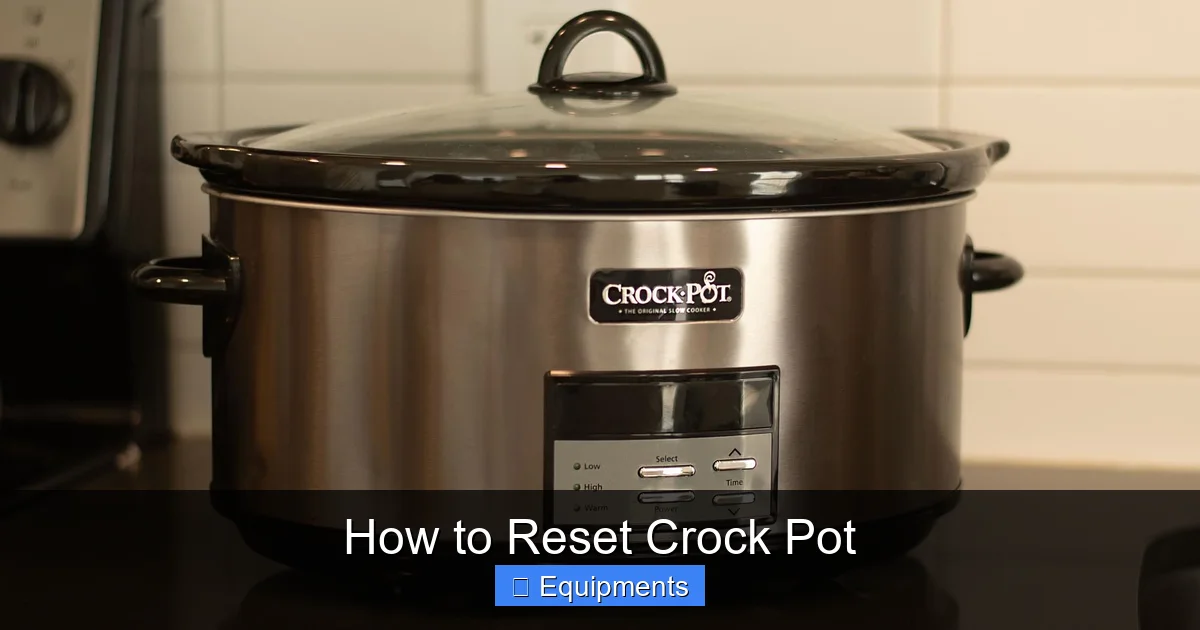
Before you touch any knobs, follow these safety steps:
Visual guide about How to Reset Crock Pot
Image source: kitchenflock.com
- Unplug the Crock Pot from the wall.
- Allow the unit to cool for at least 10 minutes. Hot surfaces can cause burns.
- Remove the stoneware insert and any accessories.
These precautions protect you and prevent damage to internal electronics.
2.2 Gather Your Tools
You usually need nothing more than a clean, dry cloth. For models with a reset button, a small screwdriver may be handy to press a recessed switch.
3. Reset Methods Explained
3.1 Soft Reset – The Power‑Cycle
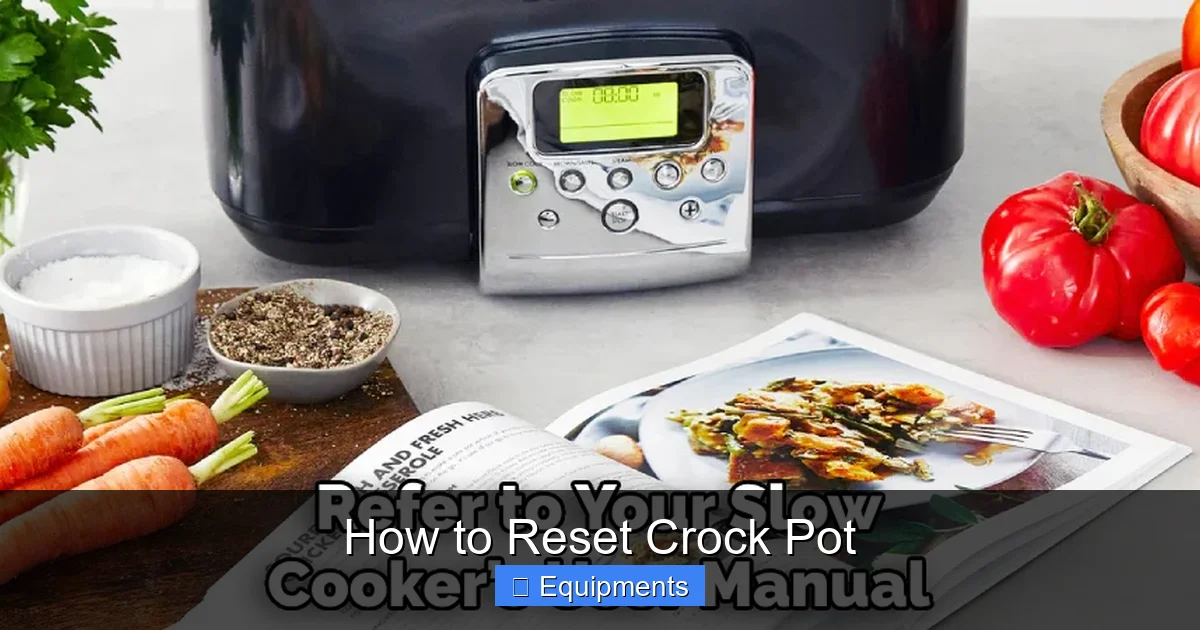
The soft reset is the quickest fix and works for most error codes.
Visual guide about How to Reset Crock Pot
Image source: thekitchenix.com
- Unplug the Crock Pot.
- Wait 30 seconds. This allows capacitors to discharge fully.
- Plug it back in.
- Press the “Start/Stop” button (or the main dial) to see if the display returns to normal.
If the unit resumes normal operation, the issue was likely a temporary glitch.
3.2 Hard Reset – Button Combination
Some newer models (e.g., Crock‑Pot 7‑Quart Programmable) have a hidden hard‑reset sequence.
- Unplug the unit.
- Press and hold the “Low” and “High” buttons simultaneously.
- While holding, plug the unit back in.
- Continue holding for 5 seconds, then release.
The display should flash “00:00” or show a brief “RESET” message, indicating the board has cleared its memory.
3.3 Reset Button (If Equipped)
A few premium models feature a small reset pinhole on the back panel.
- Locate the reset hole (usually near the power cord).
- Insert a straightened paperclip and press gently for 2 seconds.
- Release and wait for the unit to reboot.
After this, the Crock Pot will behave as if it’s brand new.
3.4 Resetting the Timer
If the timer is stuck, you can manually clear it:
- Press the “Cancel” or “Off” button (if present).
- Hold the “Timer” knob for 3 seconds.
- The display should read “00:00”.
This method is handy when the cooking cycle won’t stop.
4. Post‑Reset Checklist
4.1 Verify Normal Operation
Run a quick test:
- Fill the stoneware with water.
- Select “Low” and set a 30‑minute timer.
- Observe whether the display counts down and the heating element warms.
If everything works, you’ve successfully reset the Crock Pot.
4.2 Clean the Unit
Dust and food particles can cause overheating, which often triggers error codes.
- Wipe the exterior with a damp cloth.
- Remove the stoneware and wash it in warm, soapy water.
- Check the vent slots for blockage and clean with a soft brush.
4.3 Re‑Establish Settings
After a hard reset, any custom settings (e.g., “Keep Warm” timer) revert to factory defaults. Re‑program them according to your cooking habits.
5. Preventing Future Resets
5.1 Routine Maintenance
Spend a few minutes each month on these tasks:
- Inspect the power cord for cracks.
- Ensure the plug fits snugly; loose connections cause spikes.
- Check the stoneware for cracks that could affect heat distribution.
5.2 Proper Usage Tips
Follow these simple habits:
- Never cover the vent openings with foil or a towel.
- Place the Crock Pot on a stable, heat‑resistant surface.
- Avoid overfilling; leave at least an inch of headspace.
5.3 When to Call Customer Support
If a reset does not clear the error, consider these signs:
- The unit shuts off abruptly during cooking.
- Repeated “E” codes appear after each reset.
- Physical damage to the cord or stoneware.
Contact Crock‑Pot’s support line with your model number and a brief description of the issue. They can guide you through advanced diagnostics or arrange a repair.
Conclusion: A Simple Reset Can Extend Your Crock Pot’s Life
Resetting your Crock Pot is a quick, low‑cost solution that often restores full functionality. By following the soft‑reset, hard‑reset, or button‑press methods, you can eliminate most error codes without a technician. Pairing regular cleaning, proper usage, and a few preventive checks will keep your slow cooker reliable for years.
Remember: safety comes first, and a calm step‑by‑step approach works best. The next time your Crock Pot acts up, you now have a clear roadmap to get it back to simmering perfection.
Frequently Asked Questions
How do I know if my Crock Pot needs a reset?
If the display flashes an error code, the timer won’t start, or the unit stops heating unexpectedly, a reset is usually the first troubleshooting step.
Can I reset a Crock Pot that’s still plugged in?
For a soft reset, you must unplug the unit, wait 30 seconds, then plug it back in. Keeping it plugged in can prevent the reset from clearing stored errors.
What if the reset button is missing on my model?
Not all models have a dedicated reset button. Use the soft‑reset (power‑cycle) or hard‑reset button combination instead.
Will resetting erase my cooking presets?
Yes, a hard reset restores factory defaults, so any custom preset times or “Keep Warm” settings will need to be re‑programmed.
Is it safe to reset my Crock Pot during a cooking cycle?
It’s best to stop the cycle, unplug the unit, and let it cool before resetting. Resetting mid‑cycle can cause temperature spikes or spills.
My Crock Pot still shows an error after resetting. What next?
Check the vent for blockages, inspect the power cord, and ensure the stoneware isn’t cracked. If the error persists, contact Crock‑Pot customer support for further assistance.
Pingback: Pork and Sauerkraut Crock Pot - kitchenandhouseware.com
Pingback: Crock Pot Pork and Sauerkraut - kitchenandhouseware.com